

I realized I’d hit a new low when I caught myself refreshing a stock chart like it was a Tamagotchi. So when I heard about OpenClaw AI—a free, open-source assistant that can sit on my own machine and ping me on Telegram when something actually changes—I had to try it. The weird part isn’t the chat. The weird part is it keeps going when I stop typing, like a helpful housemate who never sleeps and definitely remembers where you keep the keys.
Why OpenClaw Different: it’s not a chatbot, it’s a doer
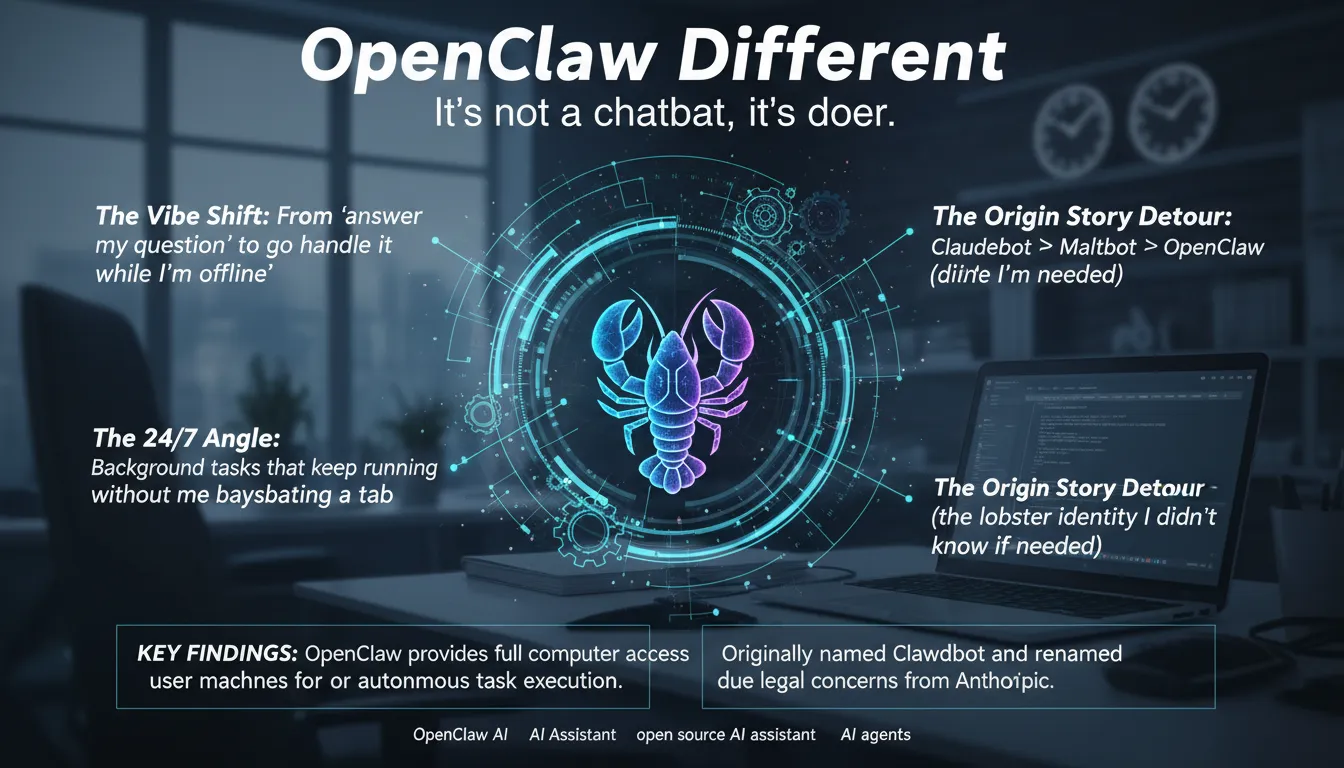
What hit me during setup is the vibe shift: instead of “answer my question,” OpenClaw AI feels like “go handle it while I’m offline.” This open source AI assistant gets full computer access on my machine, so it can run real tasks, not just talk. That’s why OpenClaw Different matters: it behaves more like one of those AI agents than a typical chatbot (even compared to Claude or GPT-5).
“A tool that takes action in the real world 24 hours a day, 7 days per week.”
The 24/7 angle is the point. I set it to watch my stock-checking habit and ping me on Telegram/WhatsApp, and it keeps going without me babysitting a tab. The “remember everything” hooks make it a persistent memory assistant, so it doesn’t reset every session.
The origin story is messy but real: Claudebot → Maltbot/Moltbot → OpenClaw after Anthropic raised Claude trademark concerns. Since January 30, 2026, it’s also exploded past 65,000+ GitHub stars.
Runs On Machine: my self-hosted setup (and the stuff I almost skipped)
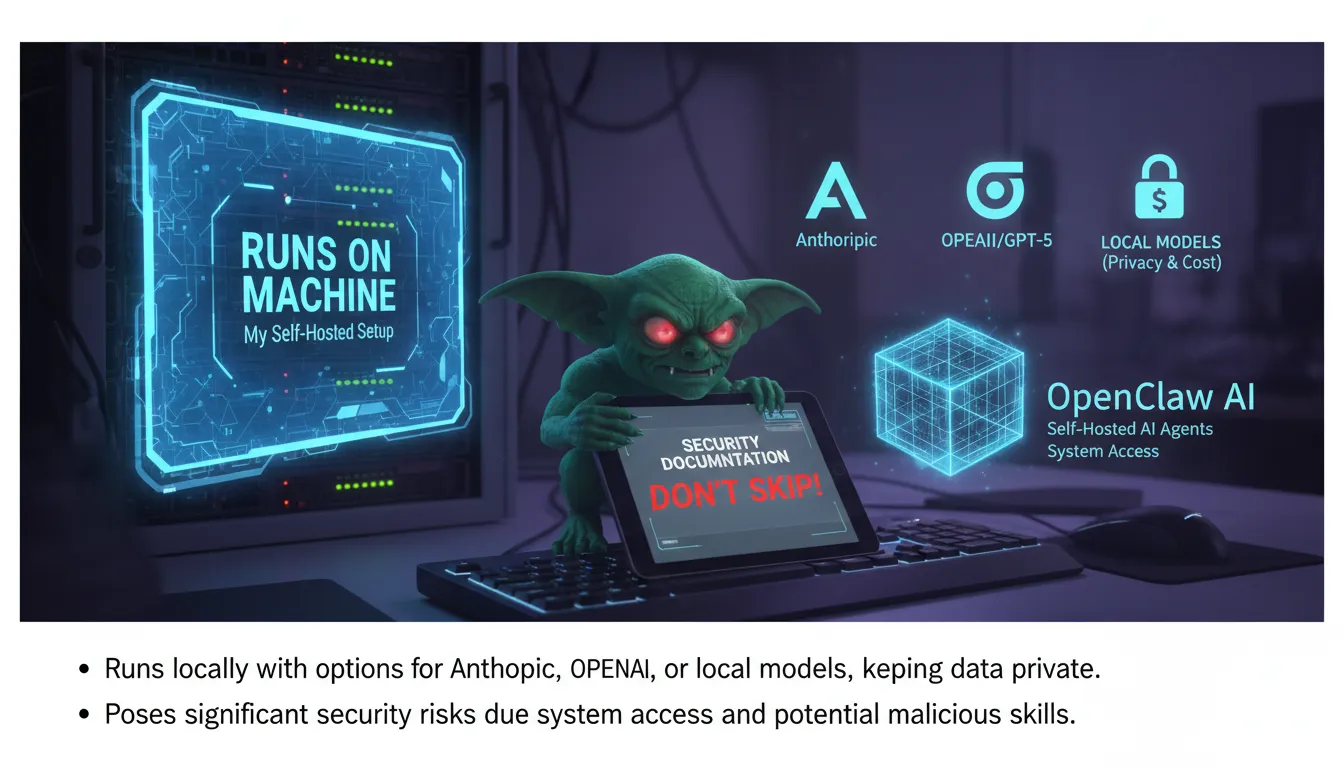
I set up OpenClaw AI as one of those self-hosted AI agents that Runs On Machine, meaning it can run on a VPS, Raspberry Pi, or (my temptation) a Mac Mini. It’s written in TypeScript, but the install felt simple.
“The first step is to install it, which can be done with a single command… Linux would be the preferred route.”
I did it on Linux to keep it boring and stable. After install, onboarding goes fast—and immediately asks you to read the security doc. My inner gremlin wanted to skip it. Don’t. This thing has real System Access, so least privilege matters, especially for API keys and tokens.
Model choice: hosted vs Local Models
- Anthropic: I pasted my API key (paid).
“The Anthropic API does cost money, but you could easily use a free open-source model here as well.”
- OpenAI/GPT-5: similar setup, different billing.
- Local Models: best for privacy and cost, since data stays local.
What surprised me: where secrets live is easy to forget—so I locked down env files and permissions.
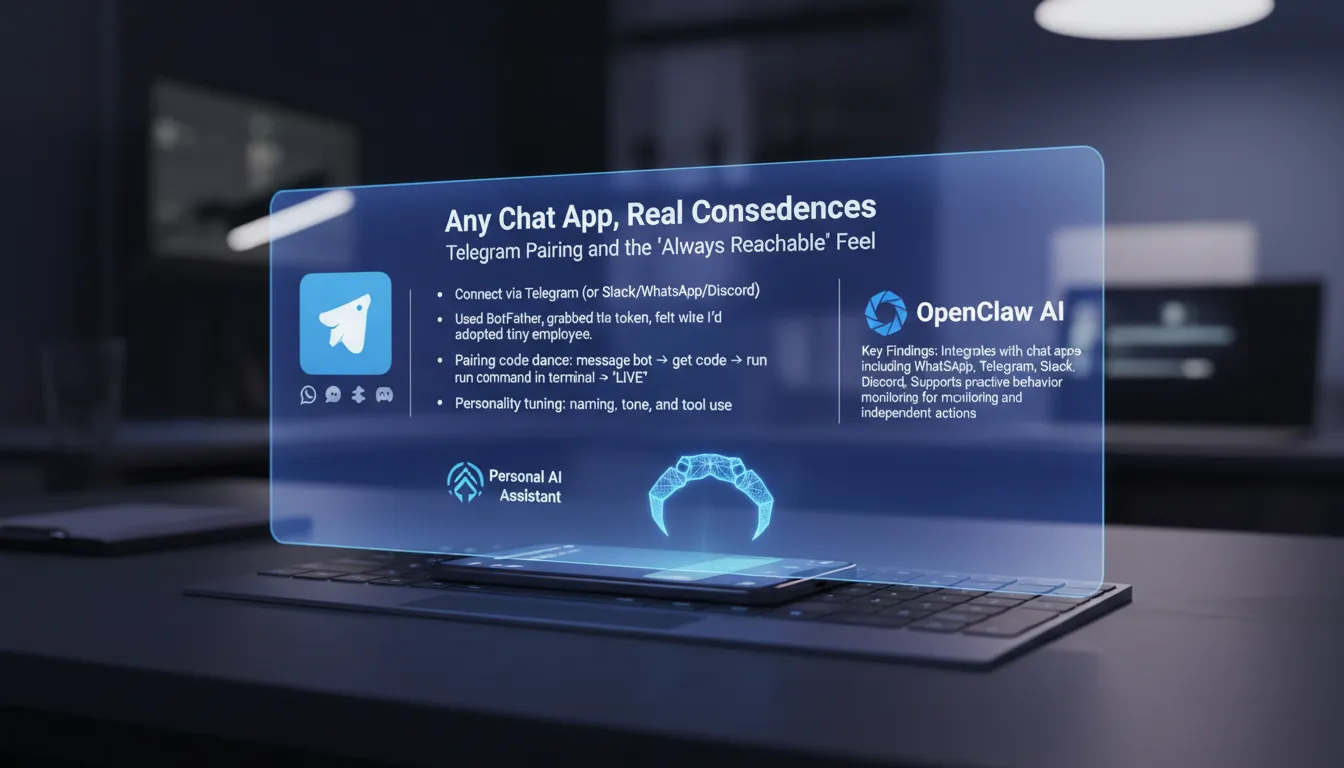
Any Chat App, real consequences: Telegram pairing and the ‘always reachable’ feel
OpenClaw AI can sit inside Any Chat App—Slack, Discord, and WhatsApp Telegram flows all work—but I went with Telegram because setup is fast. I opened Telegram, messaged BotFather, picked a bot name, and got the token.
“Start a chat with the bot father… eventually give you an access token, which is like a password that you want to keep safe.”
I treated that token like a real password, pasted it into the gateway, and saw the dashboard (chat + lots of config). Still, the goal was chat-first control.
- Message my new bot in Telegram
- Get a pairing code (“access not configured” at first)
- Run a terminal command with that code
“Now we’re good to go. Now we can start sending messages and it will respond…”
Once it was live, I tuned tone and personality right in chat. That matters because a Personal AI Assistant with Tool Use can act proactively—and suddenly it feels like a tiny employee I can reach while commuting.
Tool Use, Custom Skills, and the ‘MoltHub rabbit hole’
Custom Skills: when it stops being a toy
Setup is mostly about Custom Skills. As the docs put it:
“It has a bunch of built-in skills or you can bring your own.”Built-ins cover things like email cleanup, calendar management, running scripts, deploy tasks, and basic Automated Organization. The bring-your-own part is where OpenClaw AI starts to feel like a platform, especially since it’s Open Source and the community keeps shipping new capabilities.
MoltHub registry: 20 minutes I won’t get back
Then I hit the MoltHub registry and fell into the classic “just browsing” trap. I lost 20 minutes scrolling skills I don’t need, but it’s a real strength: a community-driven registry that makes add-ons feel plug-and-play.
Hooks, Persistent Memory, and Background Tasks
Hooks are lifecycle events.
“Hooks allow you to tap into different life cycle events… useful if you want it to keep memories…”That’s Persistent Memory plus Background Tasks: it can learn my patterns (like how I label projects) and trigger follow-ups. Lesson learned: add skills slowly and audit permissions.
Real-World Use Cases: from stock alerts to Email Management (the fun and the mundane)
My favorite Real-World Use Cases start in chat and end with less doom-checking. I asked about my Microsoft investment, and instead of a one-off answer, it turned into Proactive Behavior: monitor the stock and ping me on Telegram when it “moves significantly.”
“We now have an automation set up in the background to keep track of this stock.”
“There’s no need in my life to go check this stock manually.”
Then came career panic mode: I installed a skill that generates software engineer interview questions. I felt attacked, but it was useful.
My boring wins (that actually save my day)
- Email Management: triage, summaries, and cleanup so my inbox stops yelling.
- Calendar Management: schedule blocks, reminders, and conflict checks.
- Daily Briefings: a morning Telegram digest of meetings, tasks, and key emails.
- Browser Control: open tabs, pull info, and run tiny scripts that remove mental clutter.
I trust it for reminders and summaries; I’m cautious when it wants to deploy code.
Full Computer Access, Security Risks, and my personal rules before I let it ‘drive’
During onboarding, OpenClaw AI asks for Full Computer Access (really, Full System Access). That power is the point: scripts, email, even deployments. But it also makes Security Risks feel very real, because System Access plus a skills ecosystem is easy to misconfigure.
“It is going to request that you read the security doc about all the risks involved…”
I don’t skip that doc. Community and open-source skills can be great, but they can also hide surprises.
My safety checklist (solo and in a team)
- Isolate it on a separate Mac Mini/Raspberry Pi, not my daily laptop.
- Lock down API keys, Telegram token, and any hooks/memory.
- Audit and pin skills; review code before enabling.
- Use least privilege: separate accounts, scoped tokens, no admin by default.
- Keep a “break glass” kill switch (network off + process stop).
Wild card: a “helpful” skill quietly turns your Telegram bot into a data vacuum, scraping files and shipping them out.
Side quest: Tracer’s ‘epic mode’ and why agent orchestration matters
I love the idea of a 24/7 assistant, but when I hand real work to AI agents, they still wander. They miss context, loop, or “finish” without shipping. That’s why I pay attention to orchestration: proactive behavior that watches progress and corrects drift tends to improve reliability in agentic systems.
“Tracer is an agent orchestration layer that makes your coding agents a lot better at building real world software.”
Tracer’s epic mode feels like a planning ritual. You describe what you want, and it asks follow-up questions to produce specs and tickets—basically Multi-Step Reasoning turned into a tiny engineering plan. Then it passes that context to your coding agent and tracks each ticket in a sidebar, so Tool Use stays tied to a clear checklist.
“Tracer’s new epic mode will ask you follow-up questions to create a series of specs and tickets.”
The memorable detail is its “Bart Simpson” orchestration system, which monitors what’s happening under the hood and nudges agents back on track. To me, orchestration is the stage manager, not the actor—without it, agents forget their marks.
